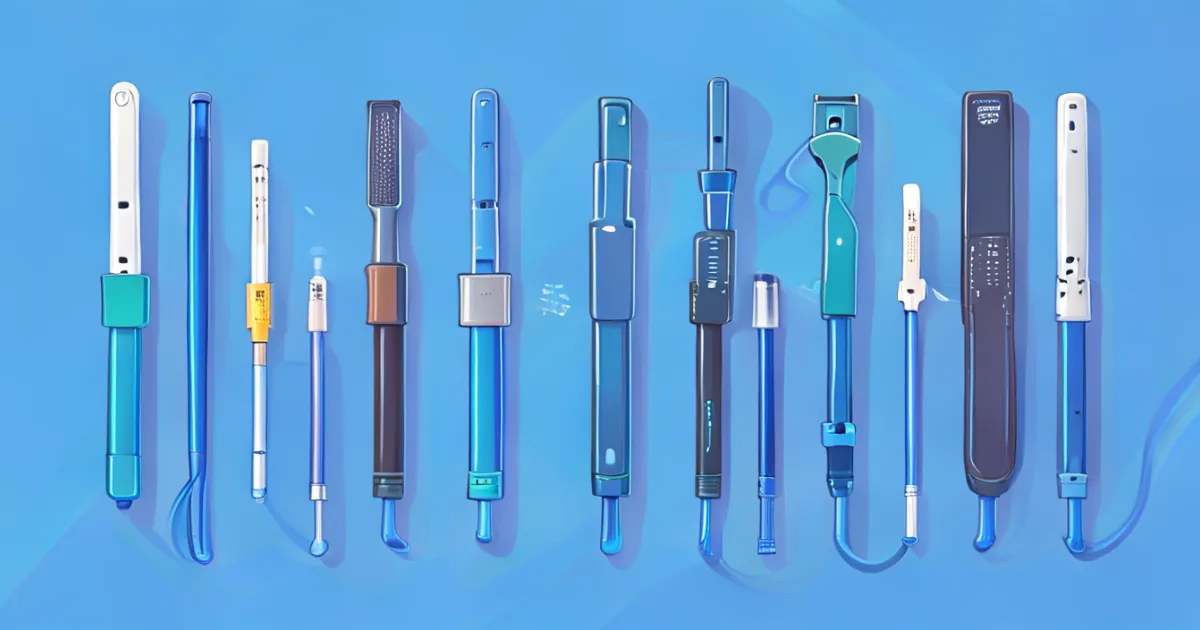
Comprehensive guide to USB-A cable types and specifications. Learn about different cable categories, materials, and how to choose the right cable for your devices.
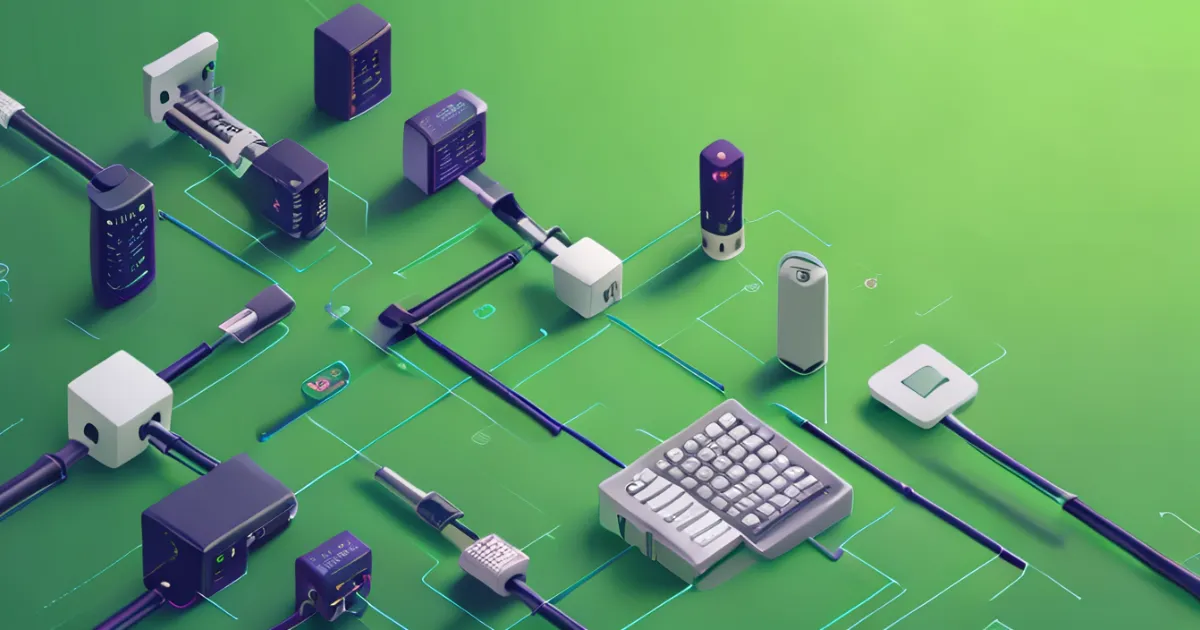
Real-world USB-A applications, troubleshooting guides, and solutions for common connectivity problems faced by users in home and professional environments.
USB-A connectors serve as the backbone of modern device connectivity in both personal and professional environments. Their widespread adoption makes them essential tools for everyday computing tasks, from simple data transfer to complex multi-device setups. Understanding practical applications helps users maximize the potential of their USB-A ports and avoid common connectivity pitfalls that can disrupt productivity and device functionality.
USB-A cable types and specifications vary significantly to meet different application requirements. Standard USB-A to USB-B cables connect printers and external hard drives, while USB-A to Micro-USB cables serve older mobile devices and accessories. USB-A to Lightning adapters enable Apple device connectivity, while USB-A to USB-C cables bridge the gap between legacy and modern standards. Each cable type features specific construction characteristics optimized for its intended use, including varying gauge conductors for power delivery and shielding configurations for data integrity. Selecting the appropriate cable ensures reliable performance and prevents potential damage to connected equipment.
Home environments benefit from USB-A's versatility in connecting everyday devices. External storage solutions, input devices, and charging stations all rely on USB-A ports for reliable operation. The familiarity of USB-A connections makes them ideal for shared family computers and home office setups where users of varying technical expertise need to connect and disconnect devices frequently. This accessibility contributes to USB-A's continued popularity despite the emergence of newer standards.
Setting up USB-A hubs for multiple devices enables users to expand the limited number of ports available on modern computers and laptops. These hubs range from simple passive splitters to sophisticated powered units with additional features like individual port controls and status indicators. Proper hub selection depends on the types and number of devices being connected, as well as their power requirements.
Powered USB-A hubs provide the flexibility needed for demanding setups that include external hard drives, printers, and charging multiple mobile devices simultaneously. These hubs include their own power supplies, ensuring connected devices receive adequate power without overwhelming the computer's built-in USB controller. Unpowered hubs work well for low-power devices like keyboards, mice, and flash drives, making them suitable for basic office setups with minimal power requirements.
Professional environments often require complex USB-A configurations that must balance device compatibility, power requirements, and data transfer needs. Industrial applications may utilize ruggedized USB-A equipment designed to withstand harsh operating conditions, while medical facilities employ specialized USB-A solutions that meet stringent regulatory requirements. These specialized applications demonstrate the connector's adaptability across diverse operational environments and industry requirements.
Effective USB-A port troubleshooting requires systematic diagnosis and understanding of common failure points. Connection issues often stem from physical damage to ports or cables, driver problems, or power management conflicts. Establishing a methodical approach to problem identification helps resolve issues quickly and prevent recurrence.
Common USB-A problems include loose connections caused by worn ports, driver corruption following system updates, and power delivery failures that prevent proper device operation. Many issues can be resolved through basic troubleshooting steps like cleaning port contacts, updating device drivers, or testing with alternative cables and ports. More complex problems may require professional assistance or hardware replacement, particularly when dealing with motherboard-integrated USB-A controllers.
Regular maintenance helps ensure consistent USB-A performance and extends the lifespan of connected equipment. Periodic inspection of cables for damage, cleaning of port contacts, and monitoring of device driver updates prevent many common issues. Users should also be aware of safe removal procedures and proper device disconnect protocols to avoid data corruption or hardware damage. These practices become especially important when working with external storage devices or mission-critical equipment.
The extensive ecosystem of USB-A products and solutions ensures continued relevance across diverse application scenarios. From basic connectivity needs to specialized professional requirements, USB-A technology provides reliable, cost-effective solutions for virtually any computing environment. This versatility, combined with the connector's widespread adoption and extensive compatibility, makes USB-A knowledge essential for anyone managing modern technology infrastructure.
For comprehensive guidance on USB-A applications and troubleshooting techniques, explore the complete USB-A resource library featuring detailed tutorials and expert recommendations for optimal connectivity solutions.
Comprehensive guide to USB-A cable types and specifications. Learn about different cable categories, materials, and how to choose the right cable for your devices.
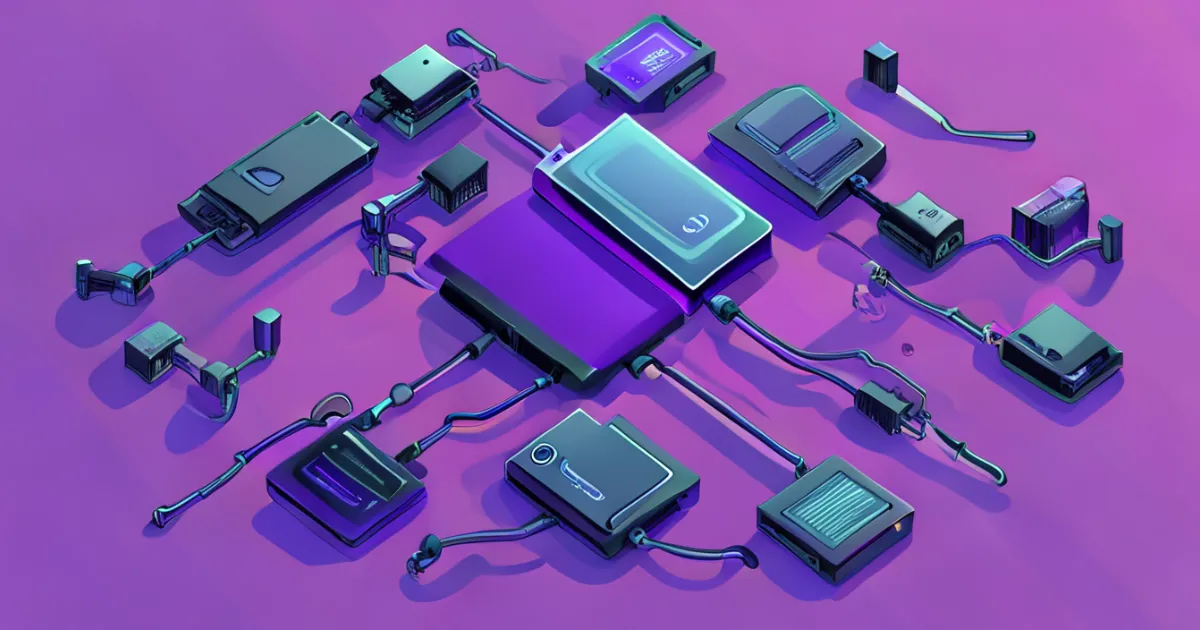
Learn how to use USB-A hubs to connect multiple devices to a single port. Understand hub limitations, power requirements, and best practices for device expansion.
Comprehensive troubleshooting guide for USB-A port problems. Learn to identify and fix common connectivity issues, driver problems, and hardware malfunctions.